
Workflow & Global Activity Pages
When a workflow didn't do what you expected on an order, product or customer, the answer is almost always on one of three pages. Start at the top and work down.
1. Did the workflow even see it? The Metrics page
Open the workflow and click Metrics. The Incoming Webhooks chart shows whether Shopify sent Arigato the event at all. No webhook, no run: check the trigger (see What triggers a workflow), and whether the workflow was enabled at the time.
Metrics → Events lists what happened, by type: Action, Job, Workflow, Condition. The Workflow type records when a workflow was enabled, paused, or deleted, so it answers "when did this stop?". It doesn't record who made the change.
2. Did it run, and what happened? The Activity page
Click Activity on the workflow. Each row is one run on one item. Filter by status, or search by the item's Shopify ID (the number at the end of its admin URL) to find a specific order or product.
| Status | Meaning |
|---|---|
| Success | Every step ran. |
| Skipped | A condition failed, so no actions ran. Open the row: the log shows which condition, and the item's values at the moment it was evaluated. |
| Failed | A step errored. The log shows the step and the error, including Shopify's response for API errors. |
| Waiting | The item is sitting in a Wait step or in the queue. |
| Running | In progress right now. |
A run says Success but nothing changed. Look inside the row for a step marked as skipped with a reason. The common ones:
- No changes needed: the tag, metafield or field was already at the requested value, so Arigato made no API call. If another app is removing the tag afterwards, this is what you'll see.
- Required input empty: the value you asked it to write rendered to nothing (a token pointed at an empty field).
- Run once already fired: the action is set to run once per item and already did.
- Action disabled, integration not connected, missing Shopify permissions: the step can't run until that's fixed on the workflow, Integrations page, or Permissions page.
"High Latency Condition evaluated" in a log is not an error. It means a condition needed extra Shopify API calls (inventory quantities, metafields) and took longer. Move cheap conditions first, or use an inventory-level trigger for stock checks.
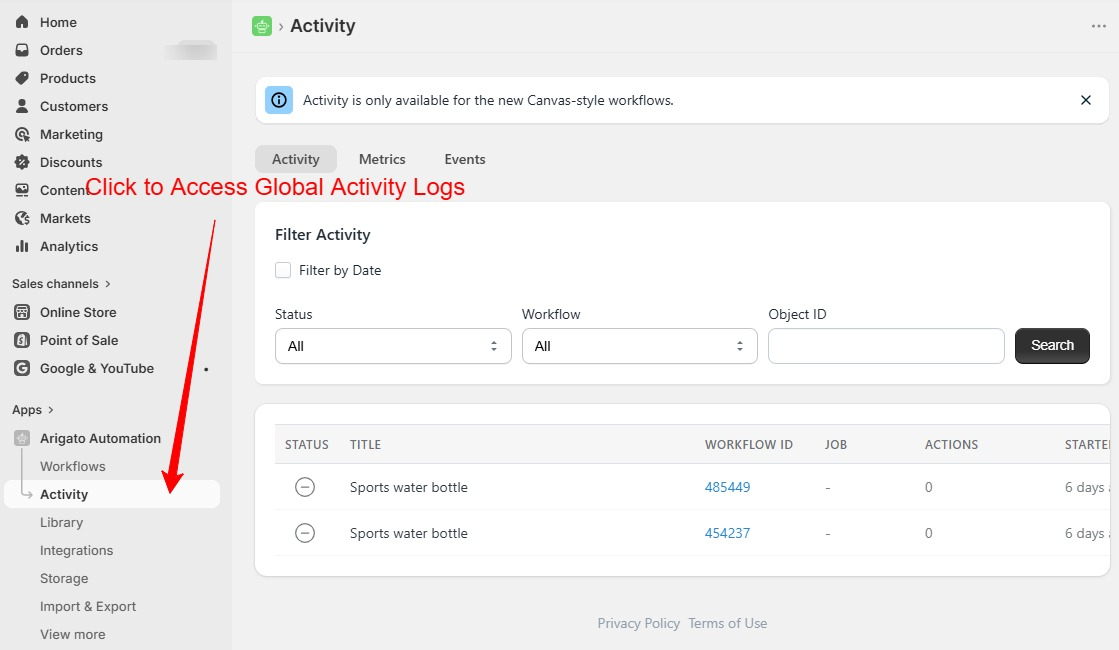
The Global Activity page (Activity in the left menu) shows the same rows across every workflow, useful for "what ran on this order?" when you don't know which workflow to look at.
3. What did the action do? View Object, View Result, View Log
Inside a row: View Object is the item as Arigato received it (the field values your conditions saw), View Result is what came back from each step, and View Log is the step-by-step record including API requests, cost and throttle status.
How long records are kept
| Kept for | |
|---|---|
| Activity rows and logs | 14 days |
| Metrics and Events | 30 days |
If a problem is older than that there's nothing to look at, so send support a recent example, ideally one from the last day or two.
Classic workflows have no Activity page
Workflows built in the classic editor show a Logs page instead, which lists actions but not per-condition results. To see why an item was skipped, convert the workflow to Canvas. If the workflow has items waiting in its queue, clone it and convert the clone so the queue isn't disturbed.
Before contacting support
Have these ready and the answer usually takes one reply:
- The workflow link.
- The Shopify ID of the item (order number or product ID) and roughly when it happened, within the last 14 days.
- What you expected to happen.
- Support access granted (see Granting Bonify Support access to your Arigato account).