
Using Tokens
Tokens are the foundation of dynamic content in Arigato workflows. They represent real data from your trigger — like an order number, customer email, or product list — and let you insert that information into messages, webhooks, and other actions.
This guide walks you through using tokens, transforming them with basic Twig, and handling common patterns like loops.
What Are Tokens?
A token is a placeholder that gets replaced with live data when your workflow runs. Tokens work on their own, but when you want to transform, format, conditionally structure, or build lists, you’ll use Twig syntax.
Examples of simple tokens:
{{ order.name }}
{{ customer.email }}
These might output something like:
#1024
user@example.com
How to Insert a Basic Token
1. Open the Action or Condition where you want dynamic content (e.g., email subject or Slack message).
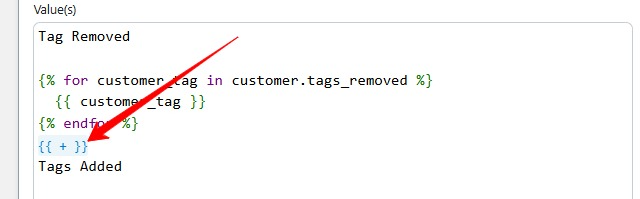
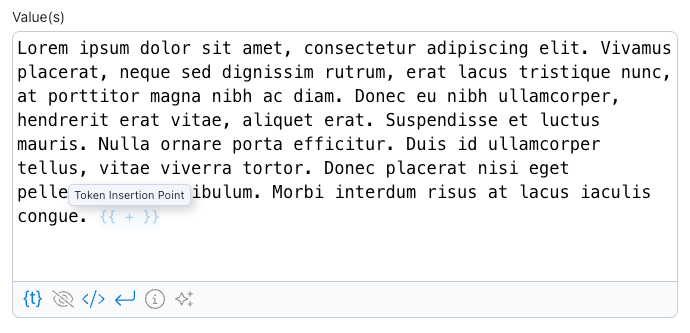
2. Click the token picker icon in the tray below the text area. This will show a token value placeholder(Token insertion point) that will highlight where the token will be inserted as follows.
3. Browse or search for the value you want (e.g., “order name”).
4. Click on the token name.
5. Click Insert Token.
6. You can manually move the placeholder before inserting the token.
When you insert, you’ll see something like:
{{ order.name }}
When the workflow runs, that placeholder is replaced with the actual data from the event.
How Token Insertion Works
When you click Insert token, Arigato displays a token insertion point placeholder in blue text that shows the point at which the token will be inserted. The token insertion point can be moved vertically or horizontally in the text area.
When You Need Twig
Tokens deliver data, but Twig lets you transform that data into exactly the format you need:
- Format dates and numbers
- Build lists (loops)
- Include content conditionally
- Join values into strings
- Clean or modify text
Twig is the expression layer that shapes token output so that it is ready for real use in emails, messages, and other Actions.
Loops — What You Need to Know
Some tokens represent collections (like order line items). When you choose one of these, Arigato may generate a loop block for you automatically:
{% for item in order.line_items %}
  • {{ item.title }}
{% endfor %}
Important Loop Rule
Once you’re inside a loop block:
- Any tokens that refer to list items must be inside that loop block.
- If you place the token insertion point outside the loop, the token inserter will automatically switch the placement and put the token inside the loop if it is dependent on the loop.
Transforming Token Output with Twig
Once you understand tokens and loops, the next big unlock is transforming data to fit your needs.
Format a Date
{{ order.created_at | date("F j, Y") }}
Lowercase an Email
{{ customer.email | downcase }}
Comma-Separated List of Product Titles
{{ order.line_items | map("title") | join(", ") }}
Conditional Text
{% if customer.orders_count > 1 %}
Thank you for being a returning customer!
{% endif %}
Minimal Twig You’ll Use Right Away
Here are the core constructs that cover most use cases:
- Display a token
{{ order.name }}<br> - Loop
{% for item in order.line_items %} • {{ item.title }} × {{ item.quantity }} {% endfor %} - Condition
{% if customer.tags contains "VIP" %} 🎉 Thank you for being a VIP! {% endif %} - Filter
{{ order.total_price | number_format(2, ".", ",") }}
Inspecting Variables for Debugging
When you’re unsure what data is available or what it looks like, you can dump it:
{{ order | debug }}
This prints the entire object’s contents, which is useful for exploring available fields and data structure. Other ways of viewing data in the app include using the Preview system and the Data Inspector.
Where to Go Next
Once you’ve mastered basic tokens and simple Twig:
- Explore the full Twig reference for filters and helpers.
- Check out our recipes for common use cases.
- Use real examples to build up your templates piece by piece.